
App installation
guide.
Choose your device, download the app and add your subscription details.
Everything you need to get started, in one place.
Before you begin: Have your subscription details ready: your username, password and server or playlist URL if needed. The app itself does not include a subscription.
Android devices
Android TV, phone or tablet.
On your TV
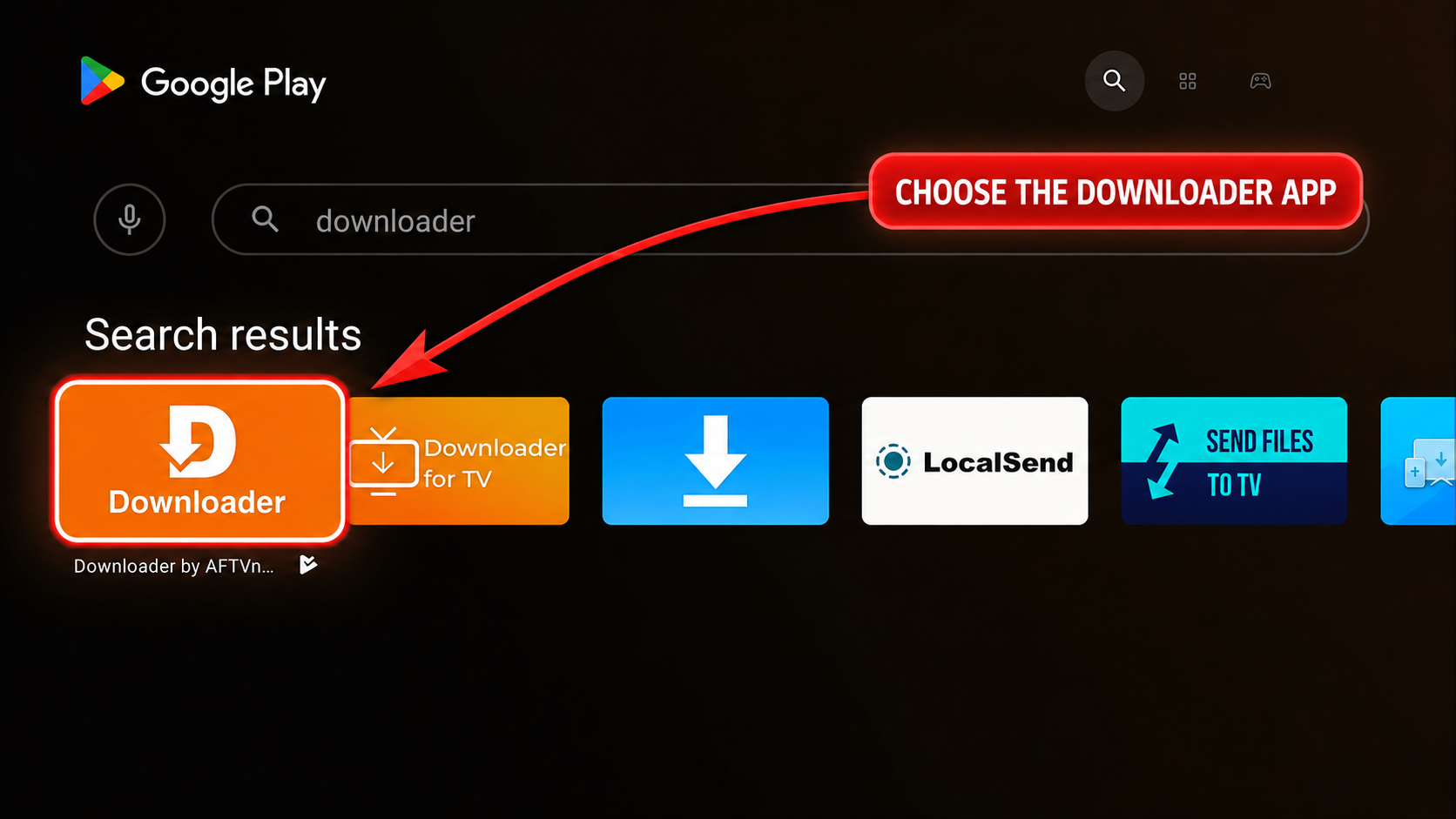
- Open your device’s app store and install Downloader —the app with the orange icon.
- Open it and enter the appropriate app code, then download the installation file from ADAM’s source.
- Install the app, then enter your username and password. Add the Host if the app asks for it.
On your phone or tablet
Download the app file using the link below, install it and enter the same subscription details.
Download ADAM IPTV APK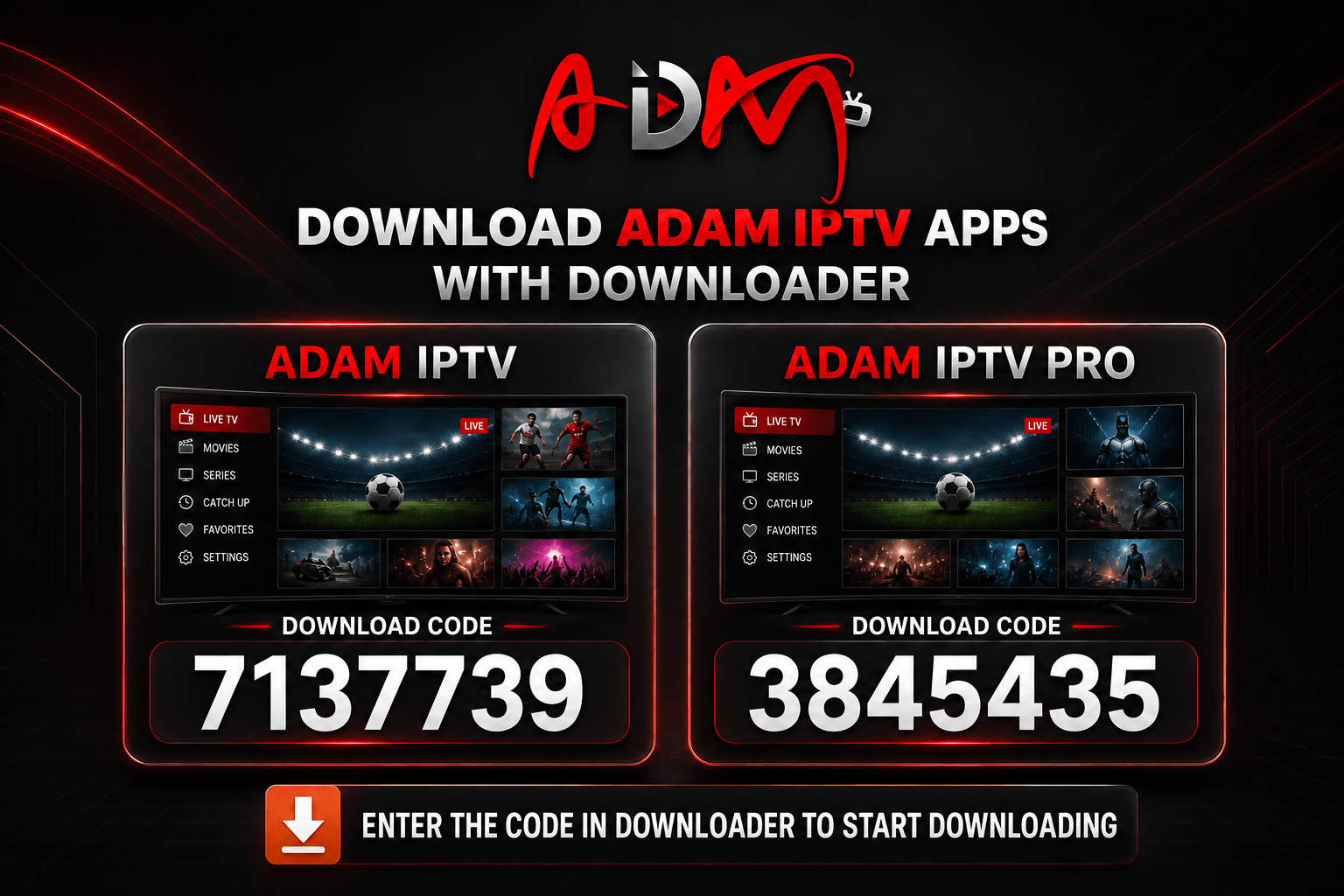
How do I identify the Downloader app?
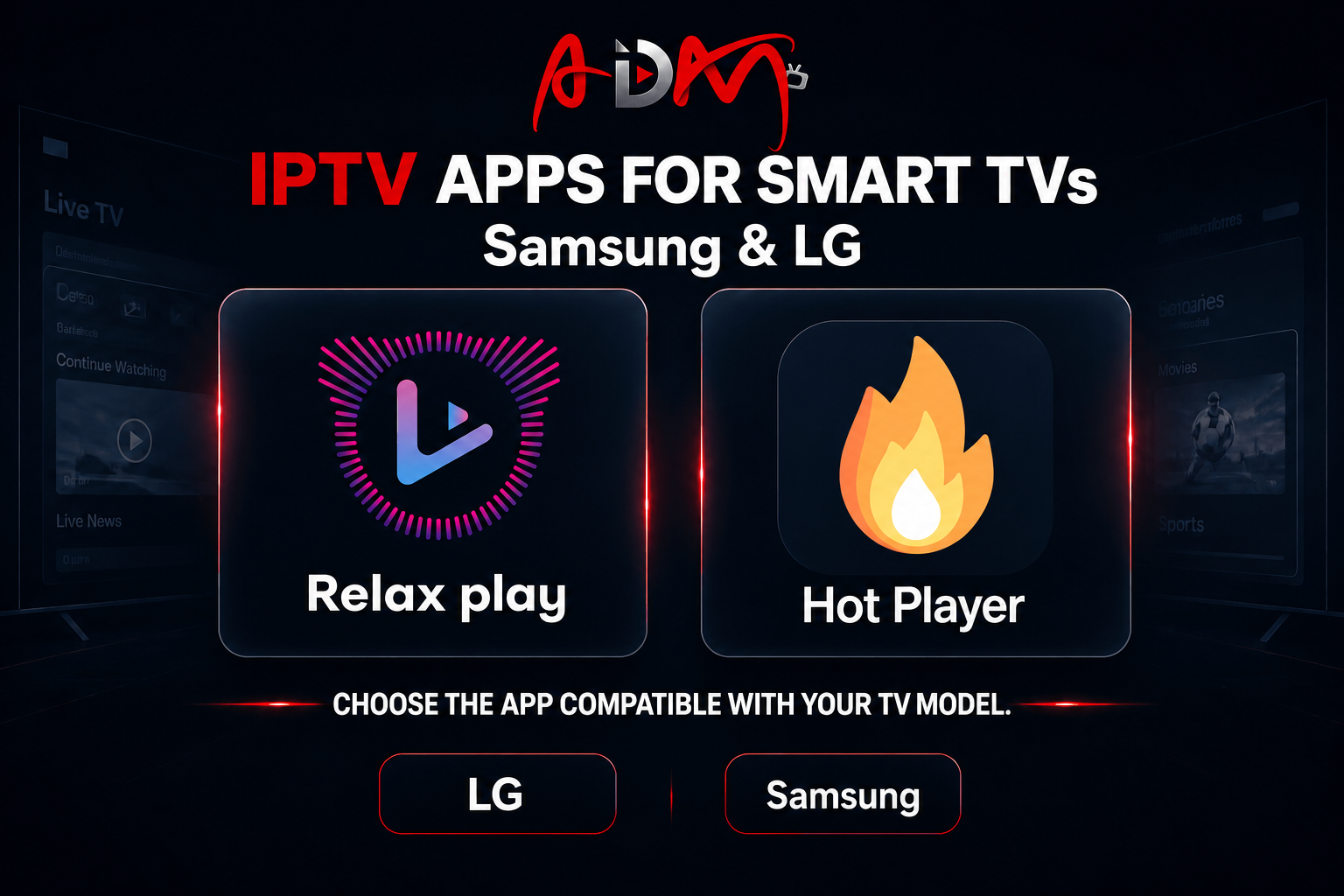
Samsung and LG TVs
Relax play or Hot Player , depending on availability on your TV.
- Find either app in your TV’s app store and install the one compatible with your model.
- Open the app and note the MAC Address or Device Key / ID shown on screen.
- On the app’s official website, add your subscription details or playlist URL, then restart the app.
App availability varies by model and region. Any app licence fee is separate from your ADAM subscription.
Apple devices
Apps for iPhone, iPad, Mac and Apple TV.
iPhone and iPad
- Install Smarters Player Lite from the App Store. Developer: WHMCS SMARTERS.
- Choose to add a playlist using Xtream Codes or M3U , as available in the app.
- Enter your subscription details, save and wait for the content to load.
On Mac
Use the same Smarters link on supported Macs. Current requirements: macOS 12.5+ and an Apple M1 or later chip; check compatibility in the store.
On Apple TV
Install iPlayTV, or Smarters if available. Add a new playlist using your Xtream Codes details or an M3U URL, then save it.
iPlayTV on the App Store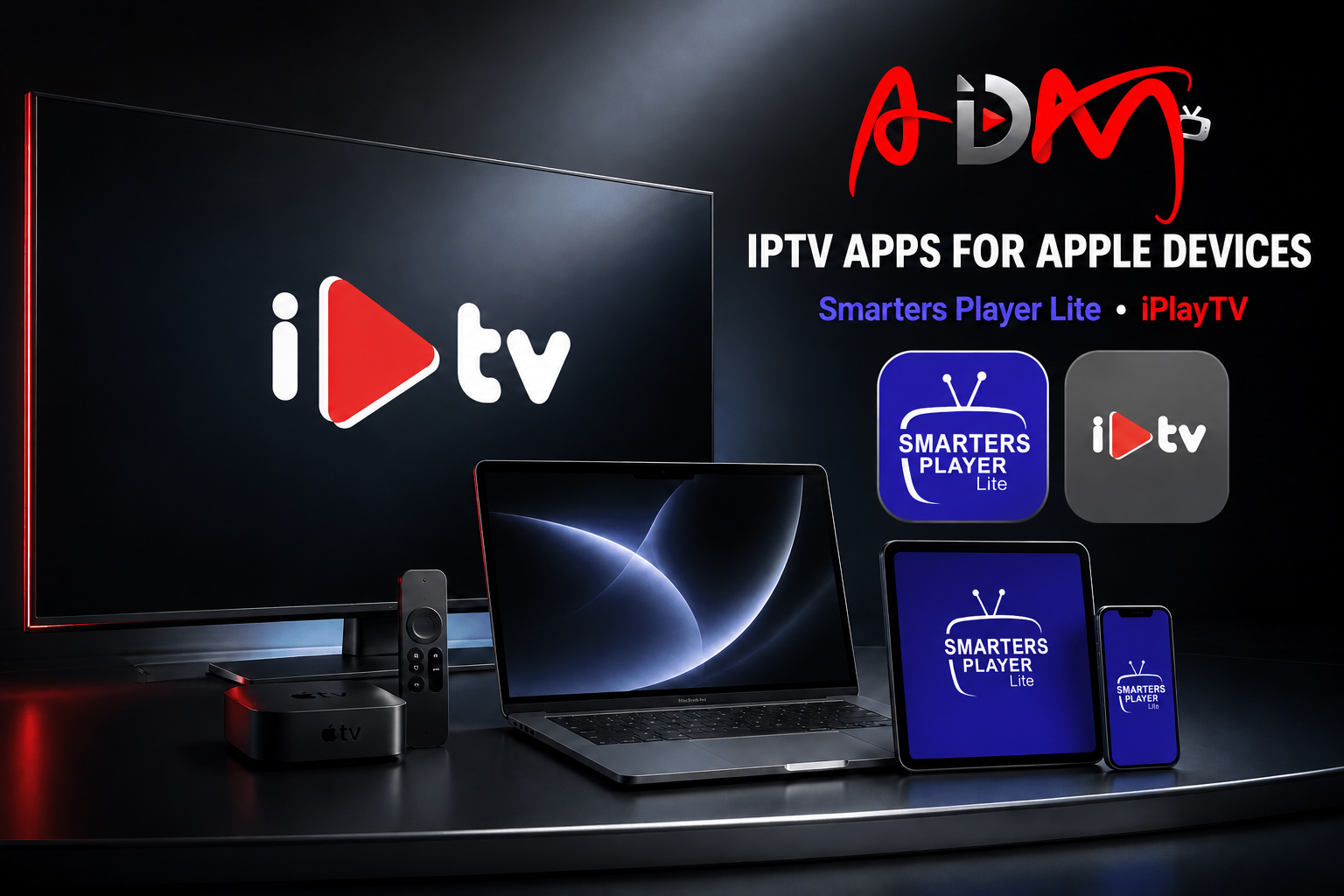
Check compatibility and pricing in the App Store before installing; availability may vary by store country.
Windows computers
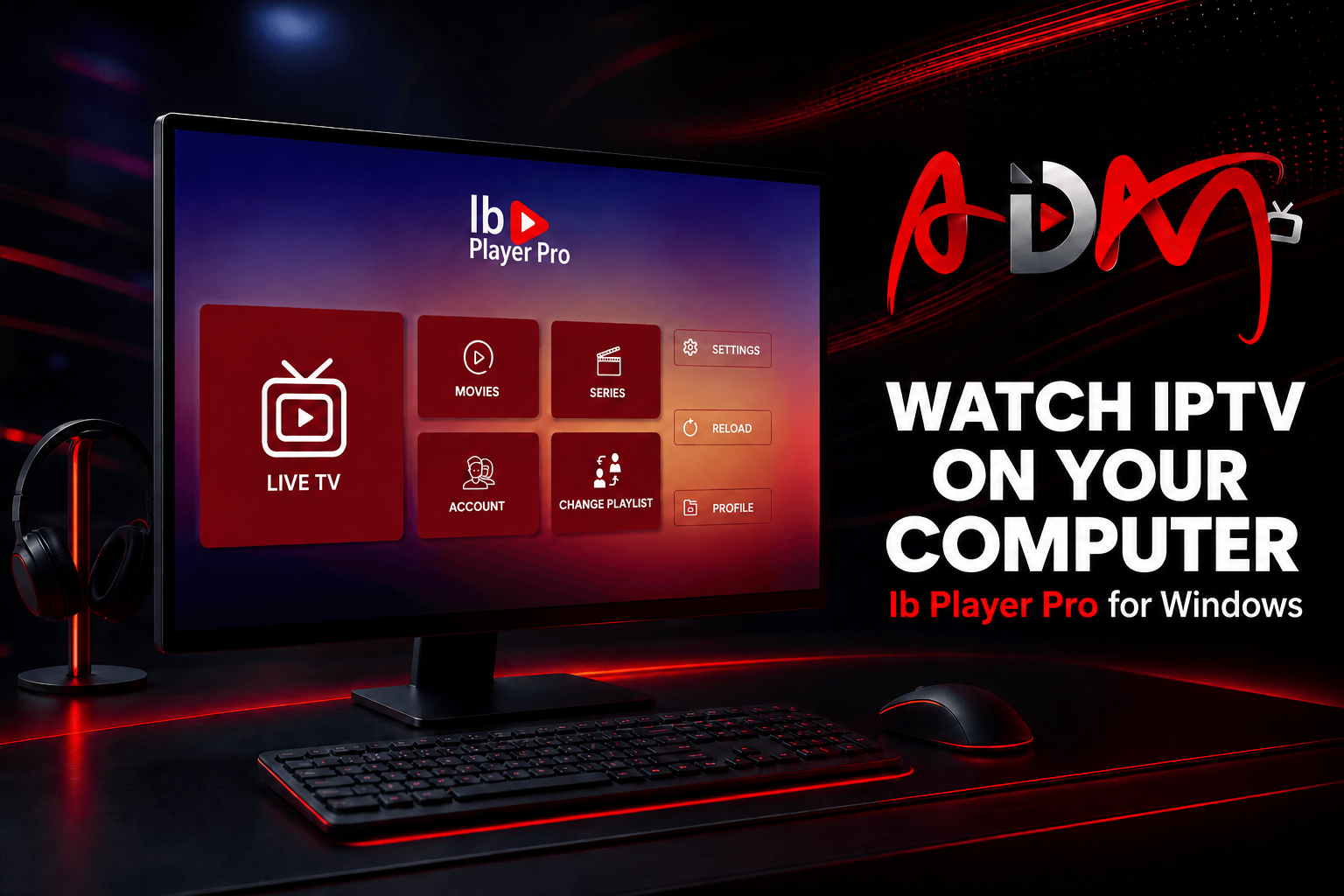
Use your subscription with Ibo Player Pro.
- Download the app from the Microsoft Store and check that it supports your system.
- Add your server details or playlist URL using the method supported by the app.
- Save your details, refresh the playlist and choose a quality level that suits your device and connection.
The app may require a separate licence from your ADAM subscription.
Stuck on a step?
Short answers to common questions.
The app isn’t in the store
Check your device compatibility and store country. Tell us your device type and model, and we’ll help you choose a compatible app.
My login is rejected or the playlist is empty
Copy your details without extra spaces, and check the server URL and subscription validity. Wait for the playlist to load, then refresh it or restart the app.
Buffering, or sound without a picture
Try a lower quality setting and update your app and device software. Use a stable connection. If the picture is missing, try a different decoder setting where available.
Are app fees and viewing on multiple devices included?
Some app fees are separate from your subscription. You can install an app on several devices, but simultaneous viewing depends on the number of connections included in your package.
Ready to watch?
The ADAM team is here to help with installation and setup.